Configuring the Browser
The Browser is structured as follows:
Entities → Tasks → FileKinds → Files
-
Entities define which database collections the user can browse. The obvious ones are assets and shots, but you may want to create additional entities (episodes, levels, etc.).
-
Tasks group file kinds together within an entity, think of them as a convenient way to organise files by department.
-
FileKinds are essentially a Lucent
Convention, they define which specific files should be surfaced in the Browser. -
Files are the result of a file discovery that matches the selected
Documentsagainst the selectedFileKind.
The Browser is configured through the file conf/app_browser.py . Similar to the file
 conf/naming_conventions.py, it will contain a lot of examples for demonstration purposes. In the following sections, we'll see how to create it from scratch.
Clear out the file conf/app_browser.py and create a blank AppConfig inside a function get_tool_config(). We will also import everything we need later on.
Entities
Declare the entities you want to access (typically assets and shots). Adding an entity automatically adds a tab to the interface:
The collection parameter indicates which MongoDB collection the Browser will query for documents. By default, BluePepper uses the assets and shots collections, but you can create additional entities and corresponding collections as needed.
Note that filters must be consistent with what you have defined in naming_conventions.py. For instance, the Browser will not be able to create an "episode" filter if the "episode" field does not exist in your Codex.
Documents from the specified collection will appear in the first column of the interface, with filtering options available at the top.
Tasks
You can now create tasks within your entity. Tasks are a way to group file kinds according to your departments' needs:
Tasks appear in the second column of the interface.
FileKinds
Populate your tasks with file kinds. A FileKind provides access to files matching a specific convention from your project's Codex:
FileKinds appear in the third column of the interface. When selecting a Document and a FileKind, the result of a file discovery appears in the fourth column of the interface.
Result
Before going further, we should take a look at the result. Here is the full code so far:
from bluepepper.core import codex
from bluepepper.tools.browser.browser_config import (
AppConfig,
Entity,
FileKind,
Task,
MenuAction
)
def get_tool_config() -> AppConfig:
config = AppConfig("bigBrowserMainApp")
asset_entity = Entity(name="asset", collection="assets", filters=["type"])
config.add_entity(asset_entity)
asset_modeling_task = Task("modeling")
asset_entity.add_task(asset_modeling_task)
kind = FileKind(
name="asset_modeling_workfile",
label="Workfile (blender)",
convention=codex.convs.asset_modeling_workfile,
)
asset_modeling_task.add_kind(kind)
return config
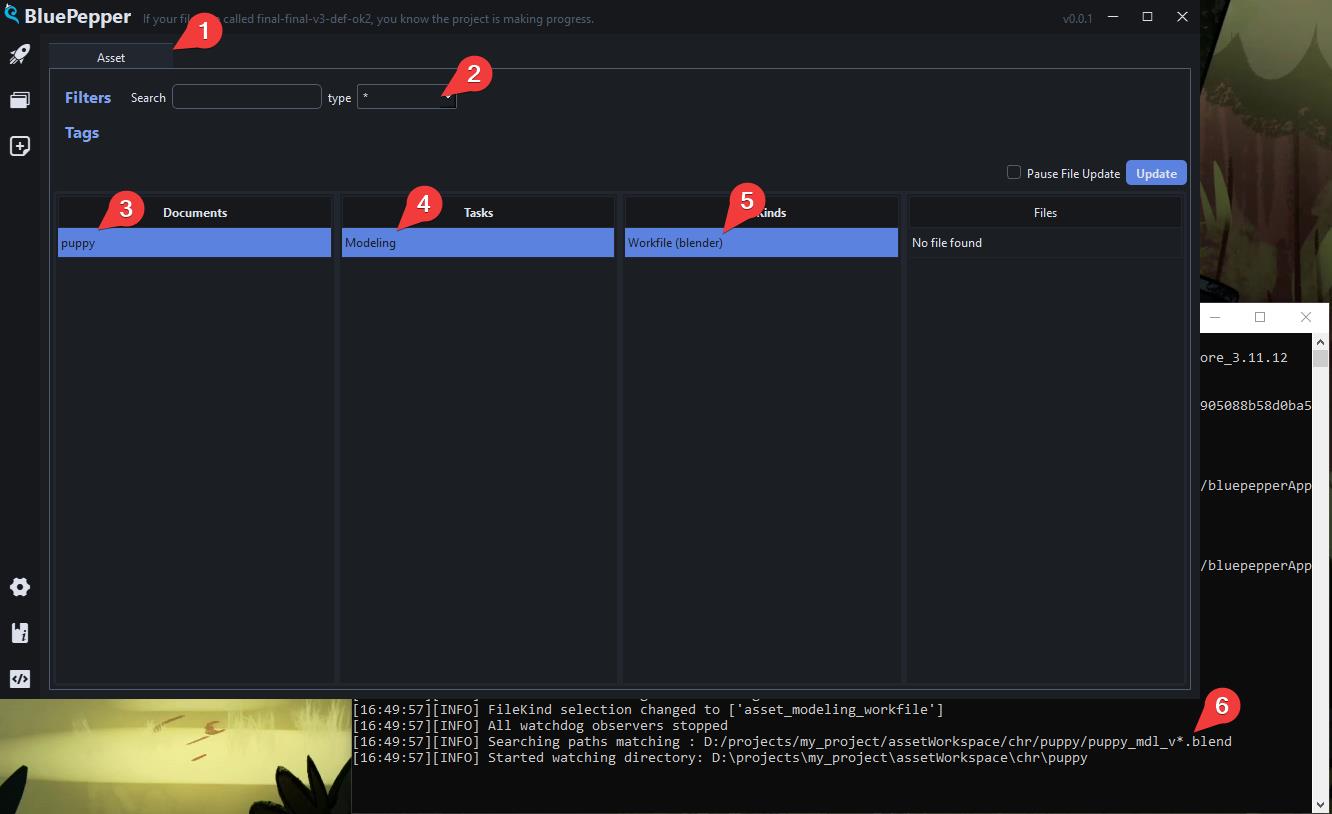
When opening the Browser, you can see the result:
1. There is a single "Asset" tab
2. Assets can be filtered by type
3. The first column displays the available assets
4. The Modeling task is available
5. And contains a Workfile task
6. While there is still no file on the server right now, the console shows that the Browser is actively looking for files that match the naming convention.
Actions
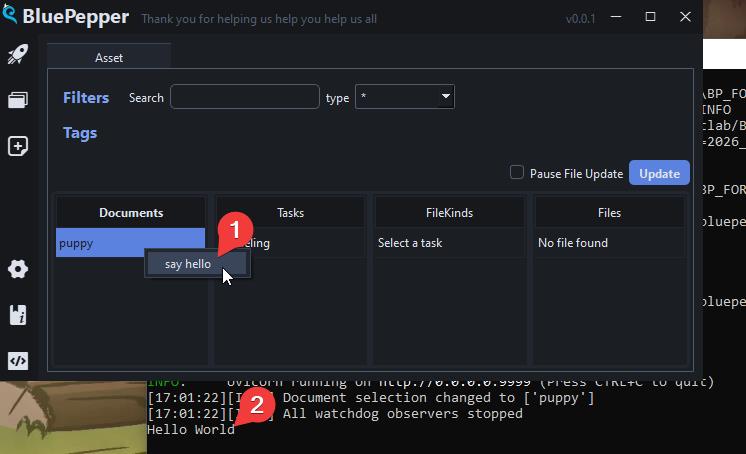
Contextual menu actions can be added to documents, kinds, and files, allowing you to define which actions are available when right-clicking on various elements of the interface.
For example:
- Create a new file in
conf/scripts(for example,print_stuff.py) - Define a function in that file:
- In
conf/app_browser.py, add an action that calls this function:
When you right-click on an asset document, the "say hello" action should appear, and "Hello World" will be printed to the console when you click it.
Passing Arguments to Actions
Printing "Hello World" is a fine start, but what if you need to pass the selected documents or files as arguments?
As an example, we will add a new function to print_stuff.py
And add these lines to app_browser.py
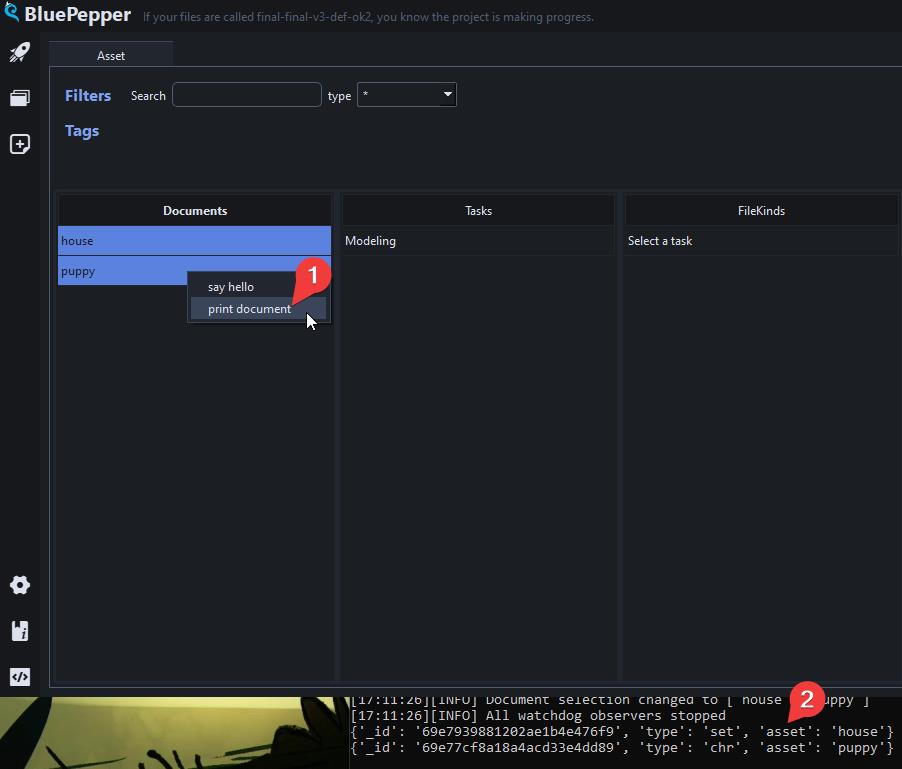
Now, see the result, with two documents selected:
You can use the kwargs attribute with all the following special keywords, which are automatically substituted when passed to your functions:
<document>: Each of the selected documents<documents>: List of all selected documents<document_name>: Each of the selected documents' names<document_names>: List of all selected documents' names<document_id>: Each of the selected documents' MongoDB IDs<document_ids>: List of all selected documents' MongoDB IDs<path>: Each selected path<paths>: List of all selected paths<convention>: The selected Convention object<browser>: The BrowserWidget object
Dealing With Multiple Selection
When triggering an action with multiple documents or paths selected, you may actually want two distinct outcomes:
- Executing the action for each selected item, with each item passed as argument
- Executing the action only once, with a list of items passed as argument
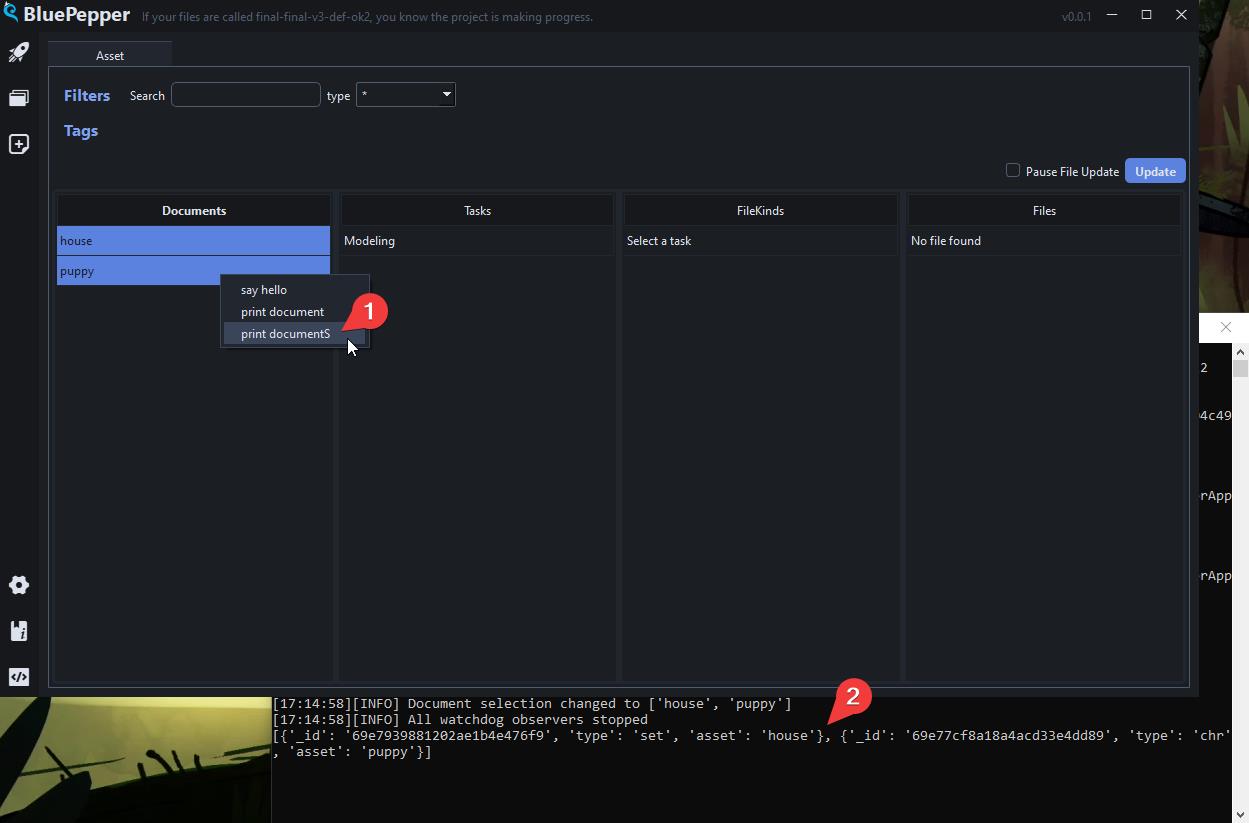
Hopefully, the mode argument can be set to each or all to cover these two cases.
As explained, the result is now printed as a list, instead of printing the documents one by one.
Warning
The kwargs and the mode must make sense together: passing <documents> in each mode will indeed not work.
Filtering Tasks and Actions
What if a task should only appear for a specific type of assets? What if an action should only be available for some specific files? Filters have you covered.
There are two types of filters:
doc_filter: Depends on the documentpath_filter: Depends on the path
Create a function that returns True if your condition is met, False otherwise. Here are some examples:
The rigging task should appear for chr assets only:
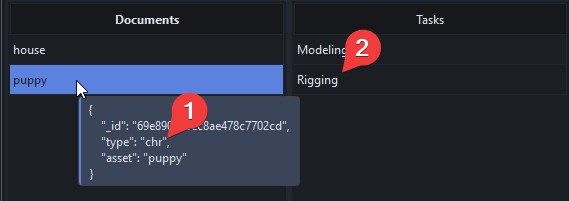
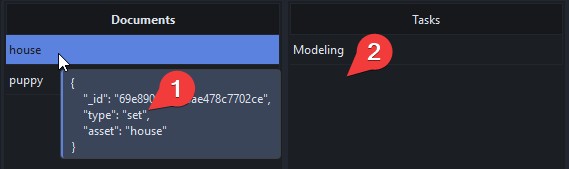
The same logic applies to files.
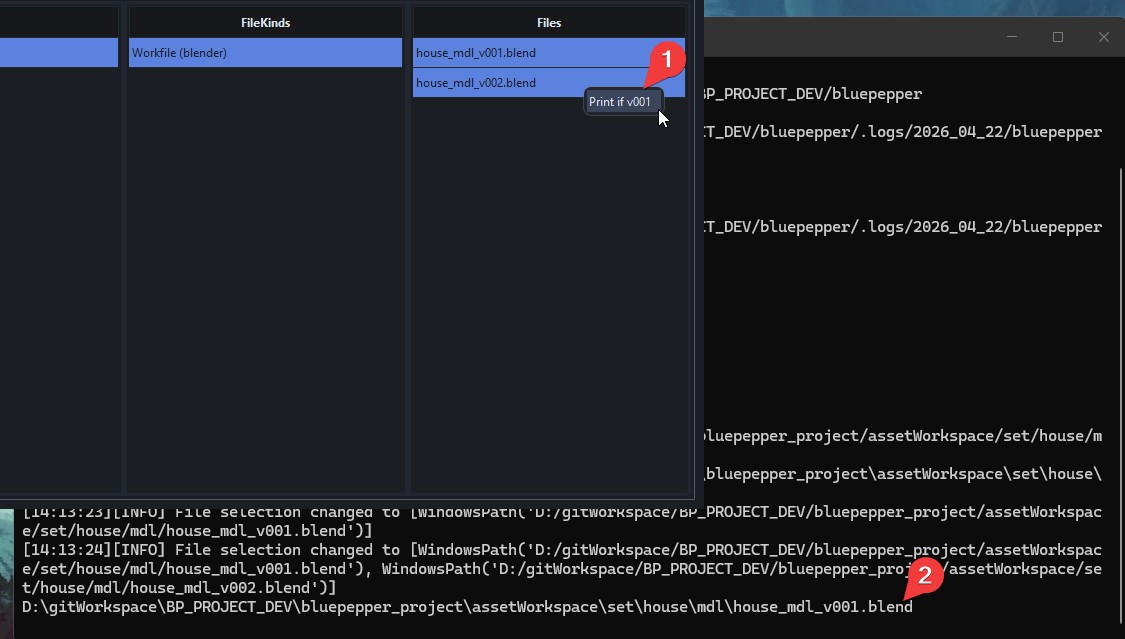
In this example, the context menu is only available for v001 files:

What if you have both a v001 and a v002 selected? The Browser handles this gracefully. The menu action will appear, but it will only execute on documents/files that match your filter.
Adding Icons to Menu Actions
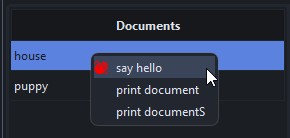
When declaring your MenuAction, you can add a custom icon and set a custom colour:
Tip
To learn how to get icon codes, see Tips And Tricks - QtAwesome Icons
Creating a Batcher Job through a MenuAction
To submit a job to the Batcher, instead of running the action in the main Thread, one can use a BatcherMenuAction instead of a regular MenuAction.
from bluepepper.tools.browser.browser_config import BatcherMenuAction

action = BatcherMenuAction(
    label="Build Workfile",
    job_name="Build Workfile - <document_name>",
    job_description="Copying empty blender file at the proper location for <document_name>",
    batcher_module="conf.scripts.example_build_modeling_workfile",
    batcher_function="main",
    batcher_kwargs={"document": "<document>"},
    batcher_notification=True,
    batcher_notification_message="<document_name> - New workfile was created",
)
modeling_workfile_kind.add_kind_action(action)
Executing this action will submit jobs to the Batcher.