Batcher
The Batcher is BluePepper's background job manager. Jobs are usually submitted to the Batcher using Browser Actions
Managing Jobs
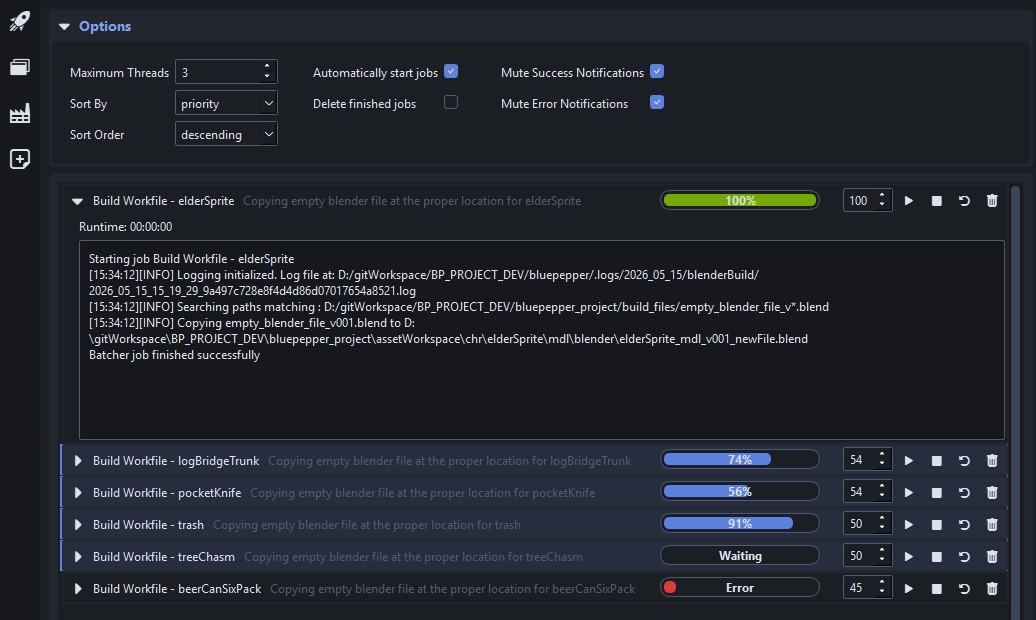
When submitted, all jobs get the Waiting status and are executed in priority order. If jobs share the same priority, the manager runs them in submission order (first-in, first-out).
Here are the actions you can perform on jobs:

 Change job priority
 Start job
 Stop job
 Restart job
 Delete job
Sometimes, clicking "Start" does not start my job
The Start Job button sets a job's status to Waiting if its current status was Error or Terminated. The job manager will execute it when its turn comes: jobs with higher priority run first.
What is the difference between Start and Restart?
The Start Job button ignores jobs that are already running. The Restart Job button will terminate running jobs before setting their status to Waiting.
Job Selection
Every button press (priority change, start, stop...) affects all selected jobs.
The Job List has an extended selection mode; the following shortcuts are available:
Ctrl+click-> additive selectionShift+click-> contiguous selectionCtrl+A-> Select allShift+left/right arrow-> Extend selection up/downCtrl+Space-> Unselect last selected item
Additional Shortcuts
Suppr-> Terminate and delete selected jobs
Options
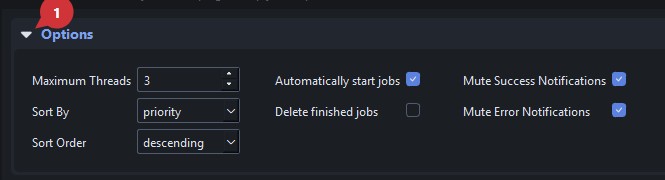
The Options panel can be expanded or collapsed by clicking the Options caret.
Maximum Threads
Total number of jobs allowed to run simultaneously. Reducing it to zero prevents any new job from starting.
Sorting
Jobs can be sorted by:
- date
- name
- priority
- status
You may sort them in ascending or descending order.
Automatically Start Jobs
Toggle whether the Job Manager should start jobs as soon as slots are available. If unchecked, new jobs will not start even if slots are available (see Maximum Threads).
Delete Finished Jobs
If checked, jobs will be removed when done. By default this option is unchecked, so you have the opportunity to read logs of finished jobs.
Mute Notifications
When executing hundreds of jobs, notifications can be overwhelming. The Batcher lets you control Success and Error notifications.
Adjust these settings to show only the notifications you need.
Process Files In Batch
For advanced users only
BluePepper provides a built-in way to process files in batch by submitting a job to the Batcher for each selected file.
For demonstration purposes, create a new script conf/scripts/my_script.py  :
:
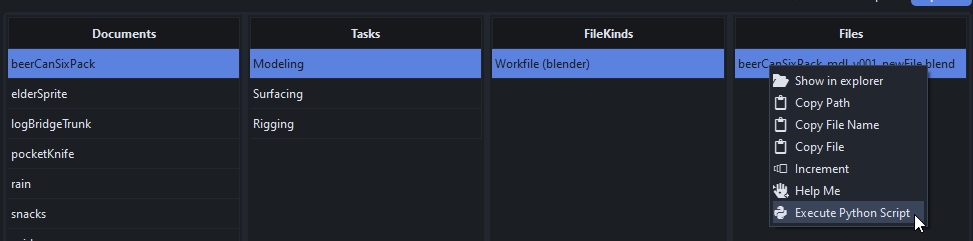
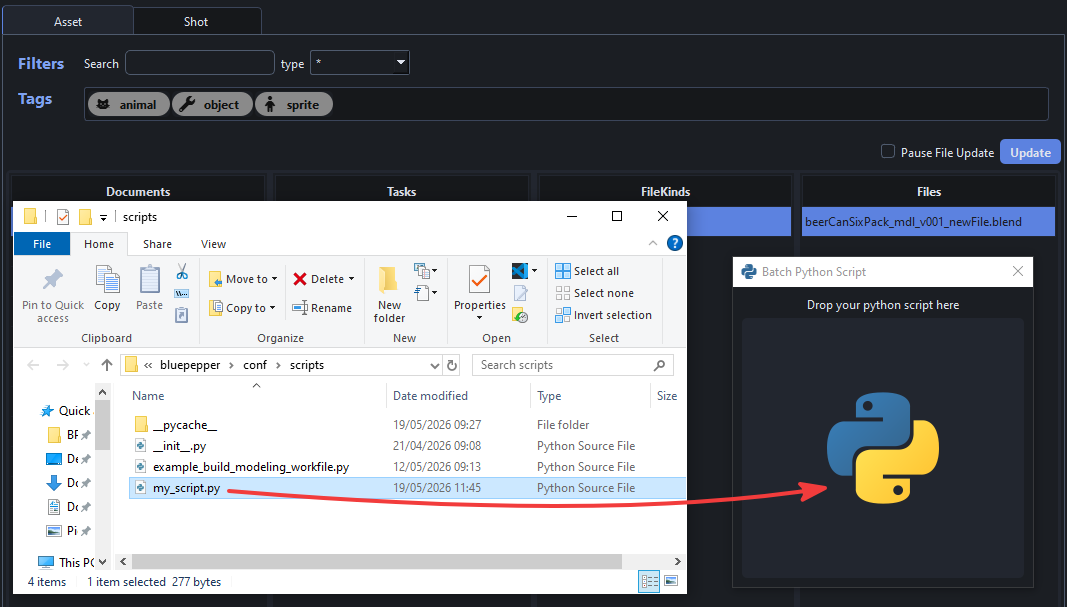
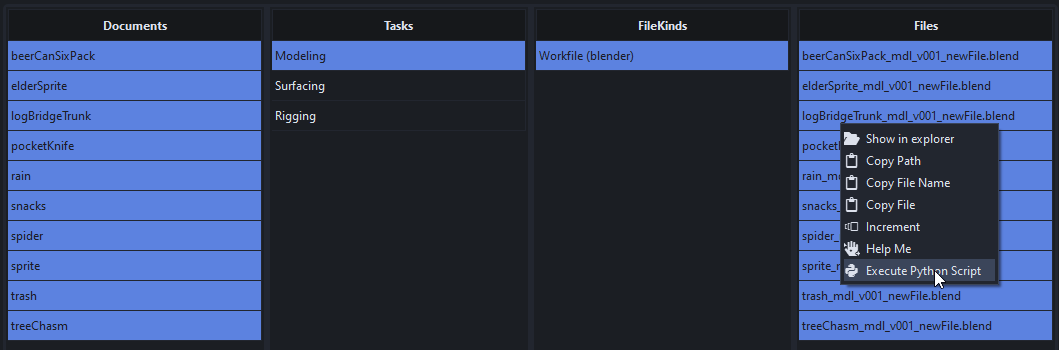
Now, right-click the file(s) to process, run the action Execute Python Script, and drop your script on the dialog.
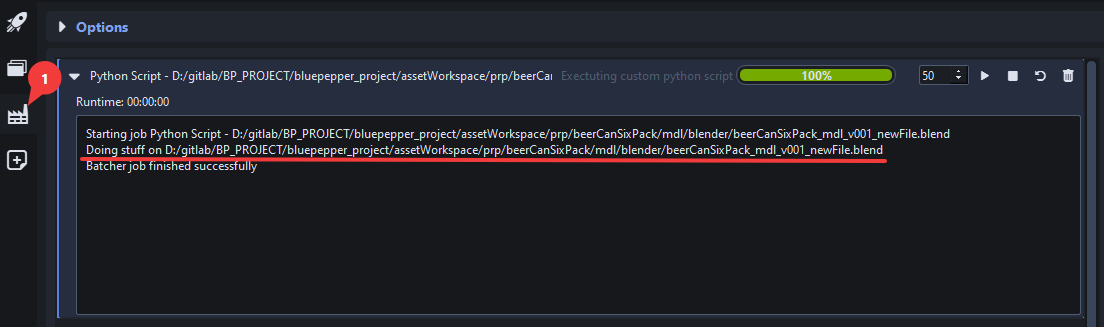
A job should appear in the Batcher. You can see the do_stuff function ran and printed the file's path.
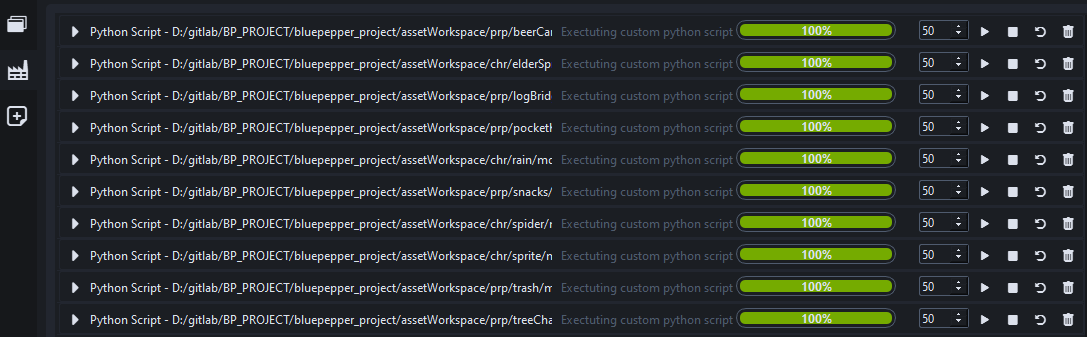
You can now select as many files as you wish and batch any script you like.
Warning
Batch operations can be powerful but also dangerous: you may break many files quickly. Add backup logic if your script removes or overwrites files.
About Documents
You can also send jobs to the Batcher from a document selection.
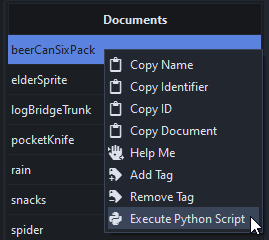
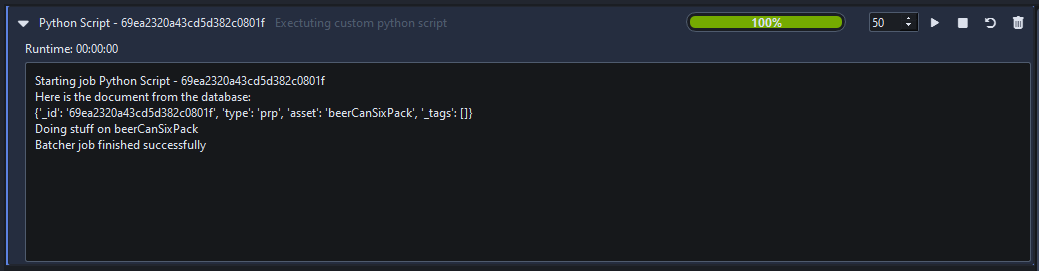
In this case, the document id is passed as an argument to the script. You will need to query the database in your script to recover the document. Here is an updated example that demonstrates this.
import sys
from bluepepper.core import database

def do_stuff(document_id):
    document = database.get_asset_document_by_id(document_id)
    print("Here is the document from the database:")
    print(document)
    print(f"Doing stuff on {document['asset']}")

if __name__ == "__main__":
    document_id = sys.argv[1]
    do_stuff(document_id)
As with files, the script is executed for each selected document.