Writing Your First Script
This section demonstrates how to use the Database and the Codex, and shows how to automate the resulting script with the Batcher.
In this example, we write a script that finds the latest version of an asset workfile and copies it to a delivery folder. The examples use documents and naming conventions from the demo project, feel free to adjust them to your needs.
Tip
Before going any further, remember to initialize the terminal properly, as specified in this section
Writing The Script Step By Step
Laying the foundations
Create a new Python file conf/scripts/my_first_script.py  with a placeholder
 main() function.
What is sys.argv ?
sys.argv returns the list of arguments provided to Python. Index 0 is the path to the script, and index 1 is the first argument passed to the script.
What is if __name__ == "__main__" ?
This line means "if this Python file is executed as a script". It prevents the main() function from running when the file is imported as a module.
You can now run your python script using this command:
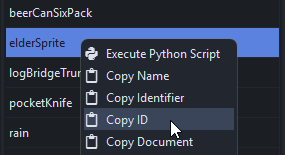
How to get a document ID?
A document's ID can conveniently be copied directly from the Browser.
Querying The Database
Having a document's ID is useful, but there is not much you can do with it on its own. The database provides a function to find the full document using its ID.
Finding Paths
BluePepper's Codex has functions to find files that match a specific naming convention. In our case, the get_last_path() function will fit our needs.
How did the file search work?
The Convention requires the fields type, asset, version, and description. The asset and type are taken from the document fields, resulting in a search string like this:
bluepepper_project\assetWorkspace\chr\elderSprite\mdl\blender\elderSprite_mdl_v*_*.blend
Lucent found all matching files and returned the last one.
Constructing A Destination Path
Building paths by splitting and mixing parts of an existing path is not worth your time. Use the Codex instead.
Add a new Convention to the Codex in conf/naming_conventions.py
Use this new Convention in the script. We'll use the transmute() function to convert a source path into a destination path.
How did the transmutation work?
Lucent extracted the fields from the original path and deduced their values:
asset=elderSpritetype=chrtask=mdldcc=blenderversion=001description=newFileextension=blend
and used these values to fill the fields of another Convention.
The transmute() function is a shorthand, but you can achieve the same result by parsing the original path and formatting a new one using another Convention.
Copying The File
Now that we have the source and destination paths, the last step is to copy the file.
Full Code
Here is the full code of our awesome script:
"""
This script is designed to copy the last version of the modeling workfile to a delivery folder
"""

import shutil
import sys
from pathlib import Path
from bluepepper.core import codex, database

def main(document_id):
    document = database.get_asset_document_by_id(document_id)
    path = codex.convs.asset_modeling_workfile_blender.get_last_path(document)
    destination = codex.transmute(path, target_convention=codex.convs.modeling_delivery)
    Path(destination).parent.mkdir(parents=True, exist_ok=True)
    shutil.copy(path, destination)

if __name__ == "__main__":
    main(sys.argv[1])
As you can see, using the Database together with the Codex allows file manipulations with very few lines of code.
Process Assets In Batch
To turn this simple script into something we can process as a batch job, we will follow the steps described in the Batcher Menu Action Tutorial.
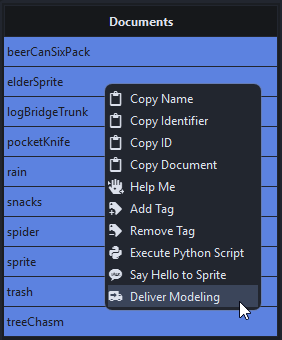
Edit the Browser configuration file conf/app_browser.py to add a new action.
from bluepepper.tools.browser.browser_config import BatcherMenuAction

deliver_modeling_action = BatcherMenuAction(
    label="Deliver Modeling",
    job_name="Deliver Modeling - <document_name>",
    job_description="Copy the workfile into the delivery folder",
    batcher_module="conf.scripts.my_first_script",
    batcher_function="main",
    batcher_kwargs={"document_id": "<document_id>"},
    batcher_notification=True,
    batcher_notification_message="<document_name> - Delivery Done",
    qta_icon="mdi.truck-delivery",
)

asset_entity.add_document_action(deliver_modeling_action)
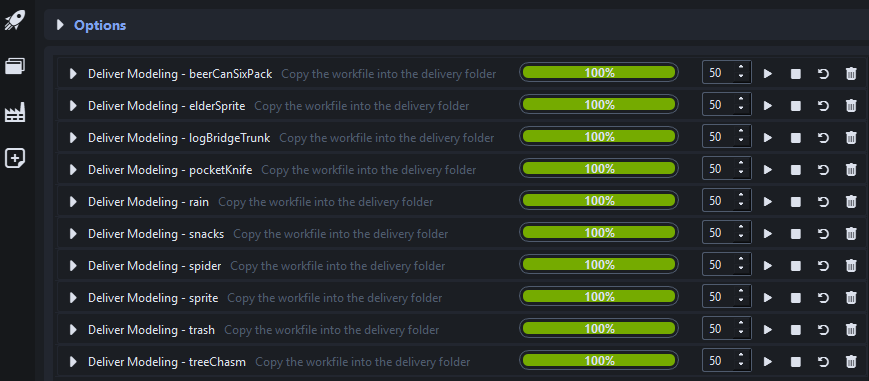
The contextual action is now available, and the Batcher will process the job.
Process Files In Batch
For demonstration purposes, we performed document queries and file discovery to help you become acquainted with the Database and the Codex, but the Browser can already do most of the heavy lifting.
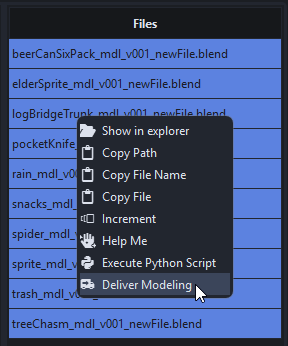
Our script can be adjusted to take a path as an argument instead of a document ID.
And the BatcherMenuAction can be adjusted to be triggered with files instead of documents.
deliver_modeling_action = BatcherMenuAction(
    label="Deliver Modeling",
    job_name="Deliver Modeling - <document_name>",
    job_description="Copy the workfile into the delivery folder",
    batcher_module="conf.scripts.my_first_script",
    batcher_function="main",
    batcher_kwargs={"path": "<path>"},
    batcher_notification=True,
    batcher_notification_message="<document_name> - Delivery Done",
    qta_icon="mdi.truck-delivery",
)

modeling_workfile_kind.add_file_action(deliver_modeling_action)
The Action can now be triggered on files, and the result will be the same.